How to Use the App
1. Getting started
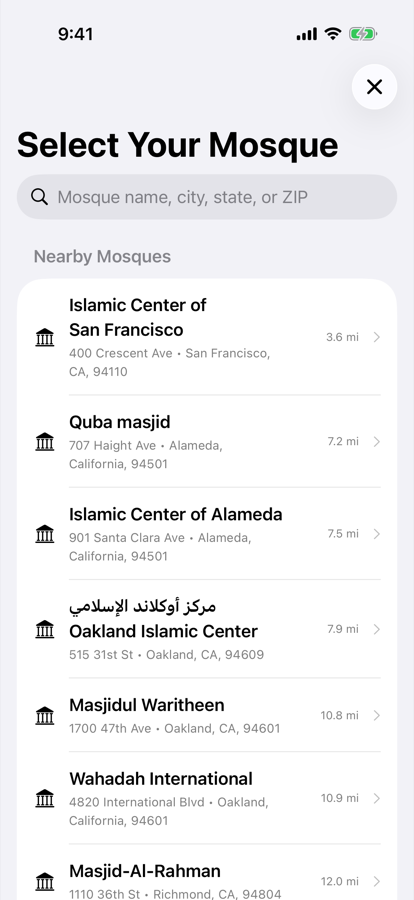
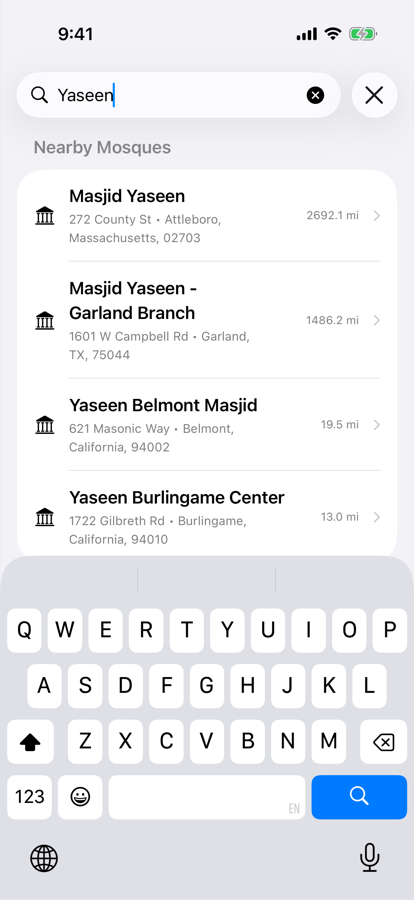
The first time you open the app, it asks which mosque you follow. Type a name, city, or ZIP code in the search box, then tap your mosque. That's the whole setup, and you can change it anytime.
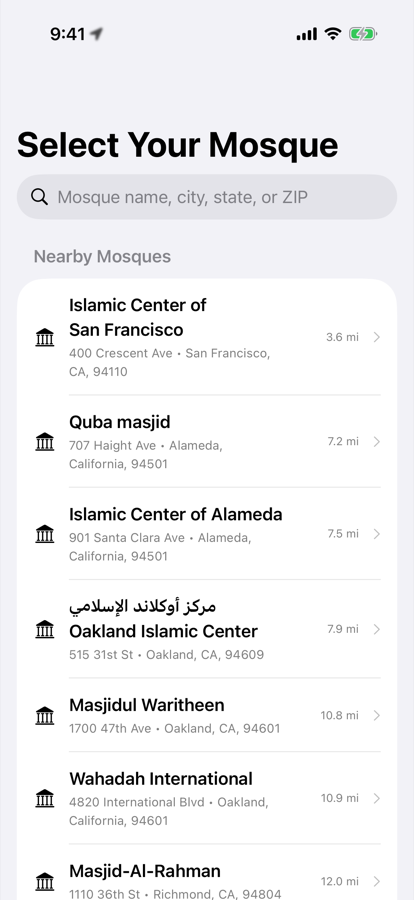
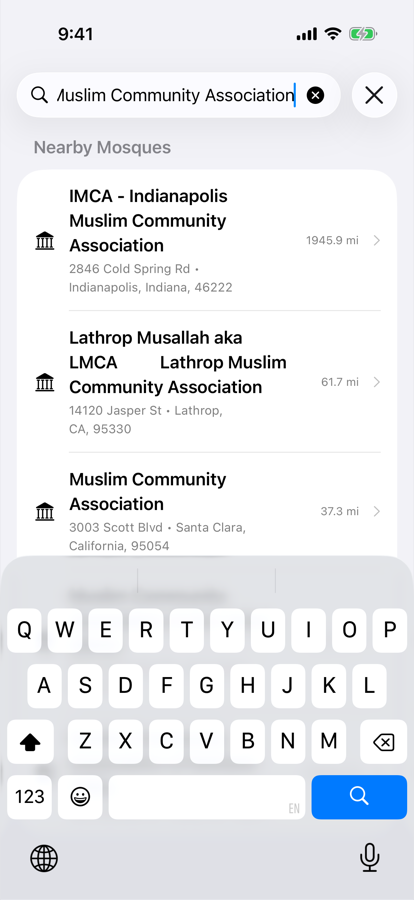
Outside the US and Canada, or without a nearby listed mosque, the app offers calculated prayer times for your location instead.
2. The home screen
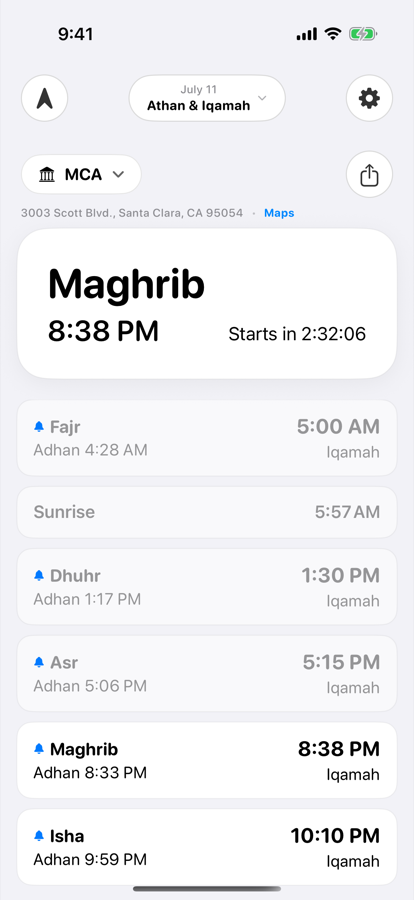
The home screen shows today's schedule for your mosque: the next prayer with a countdown on top, then every prayer with its Adhan time and the mosque's Iqamah time. Tap the date pill at the top to peek at another day.
3. Switching mosques
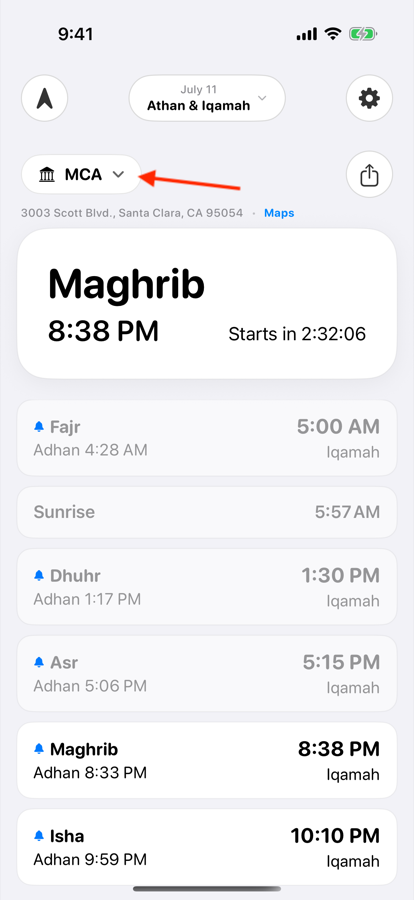
Tap the mosque name chip under the header to open the mosque list. Recent mosques stay on top, and the same search finds any mosque in the directory.
4. Qibla direction
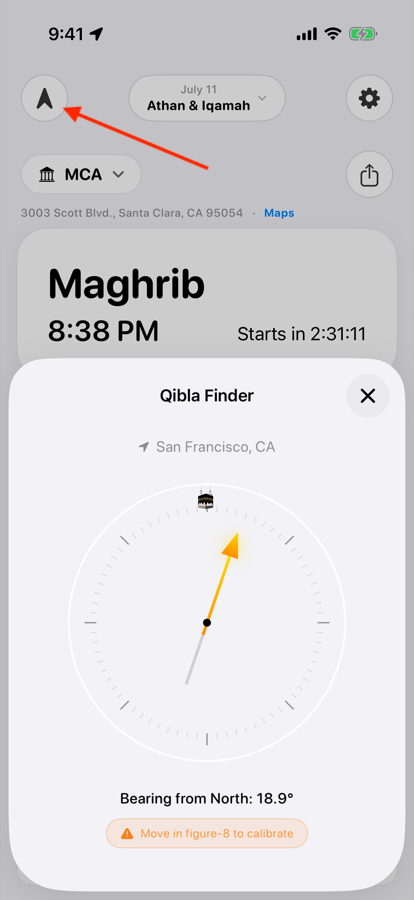
The compass button in the top left opens the qibla view. Hold your phone flat and turn until the arrow points straight ahead.
5. For mosque admins: editing your schedule
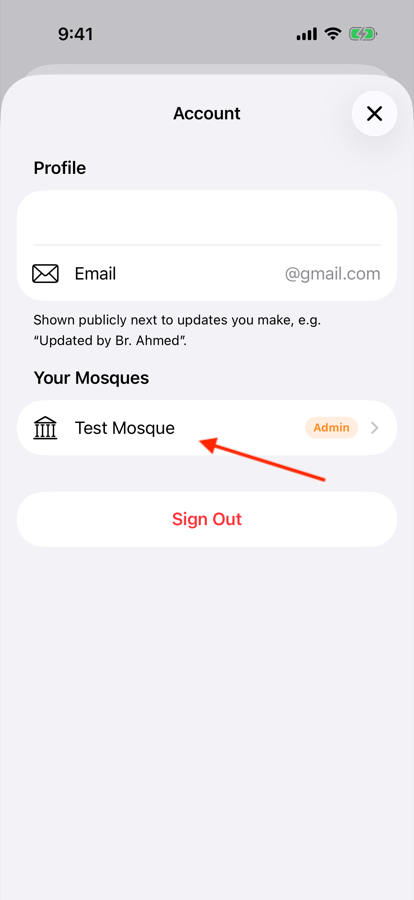
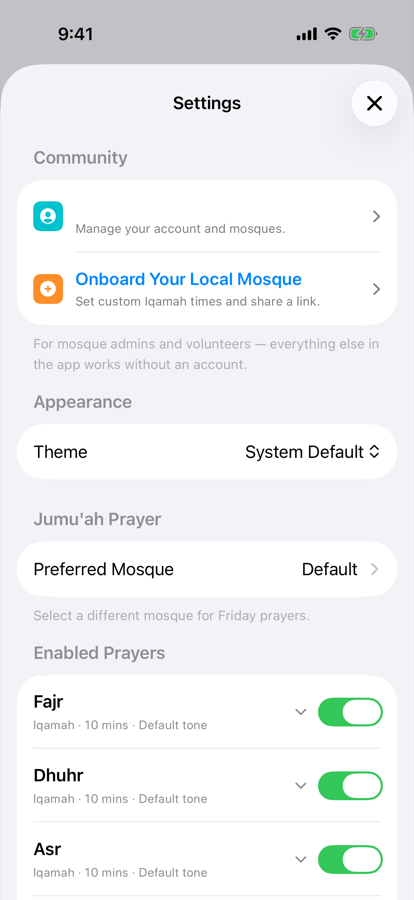
Mosque admins and volunteers can manage their mosque's iqamah times right from the app. Sign in from Settings, and your mosques appear under your account.
- Open Settings and sign in (email, Google, or Apple).
- Tap your account, then pick your mosque under Your Mosques.
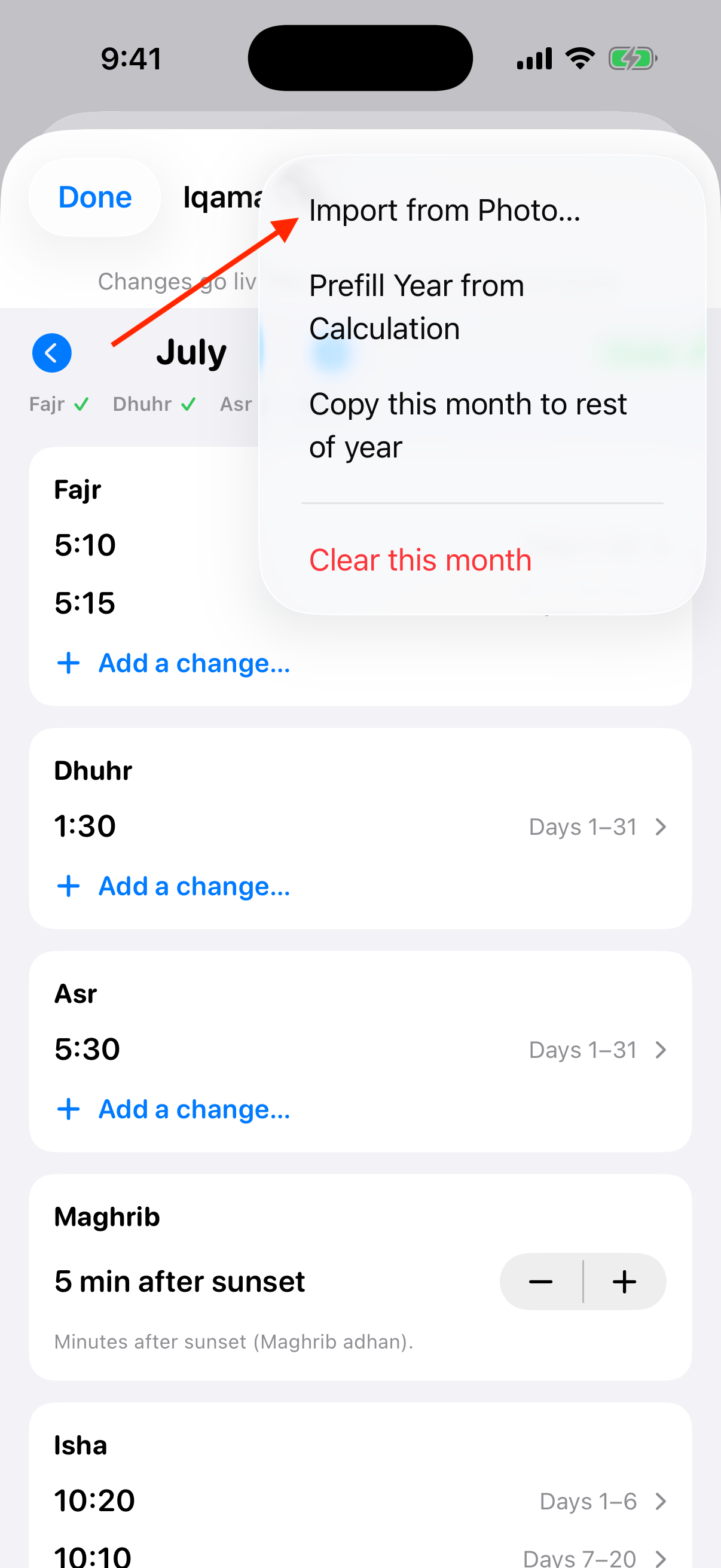
- Choose Edit Iqamah Times to open the schedule editor.
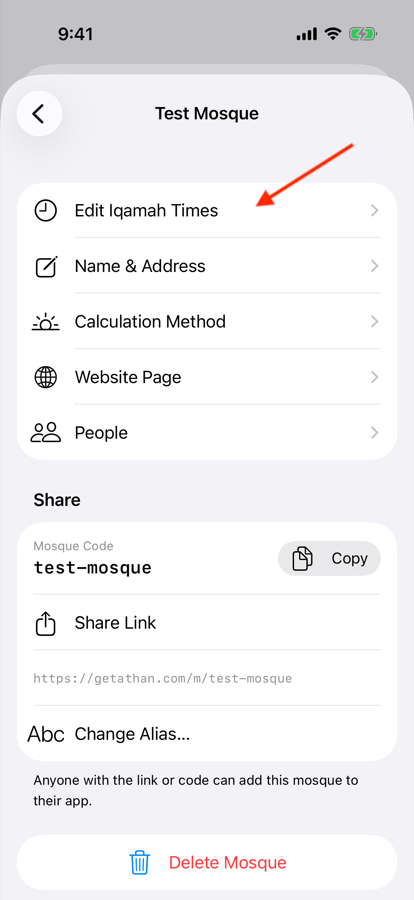
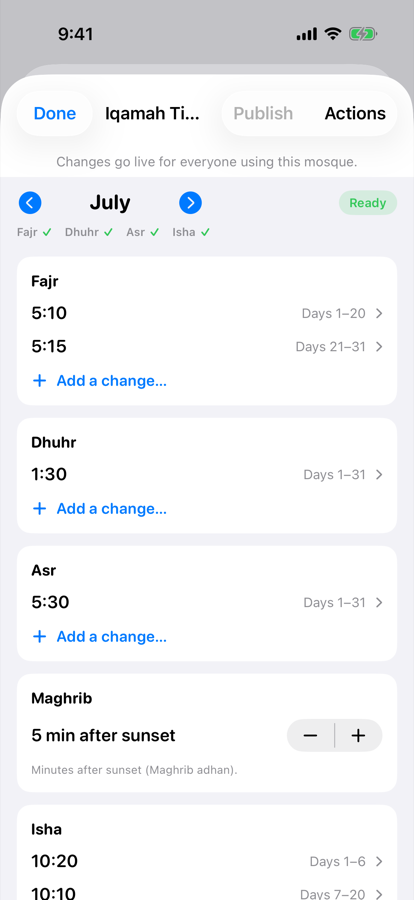
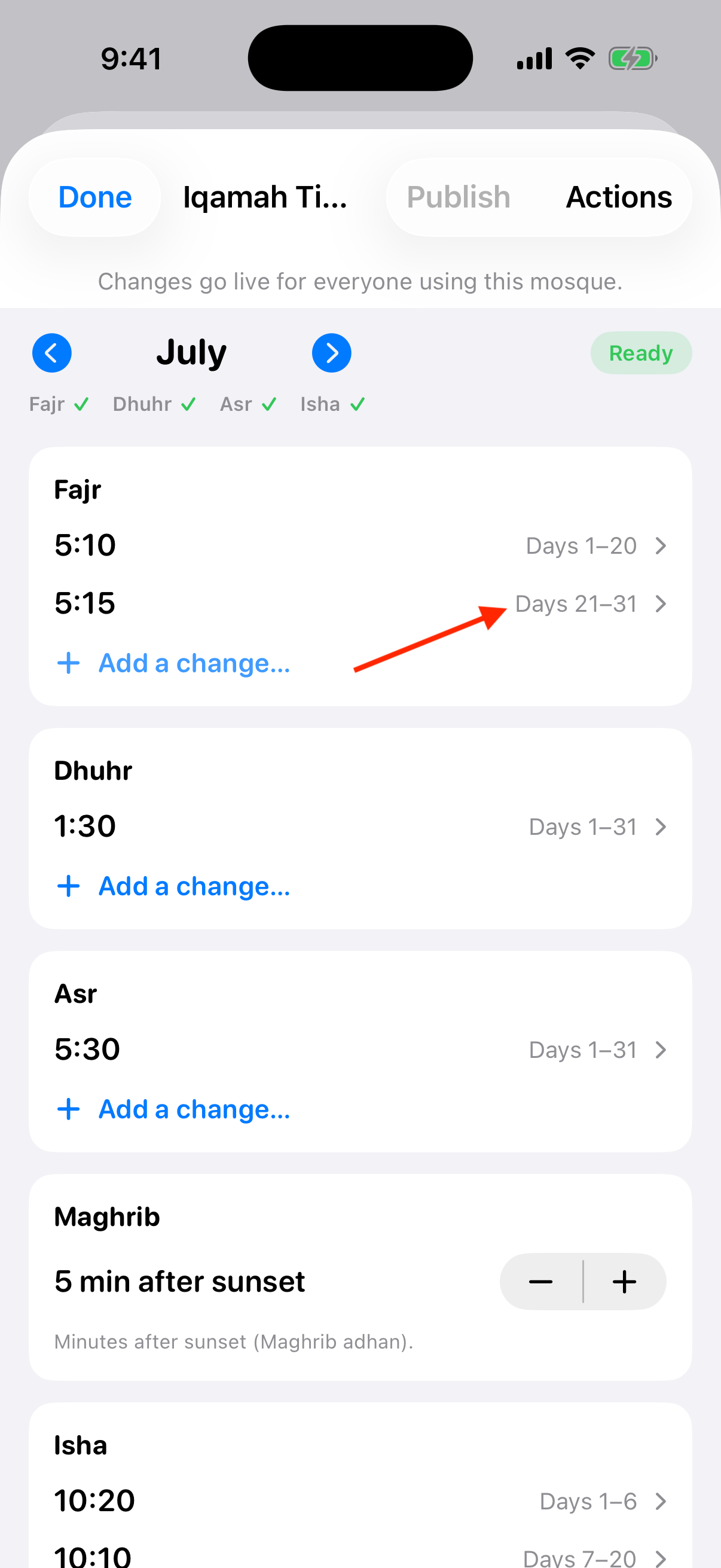
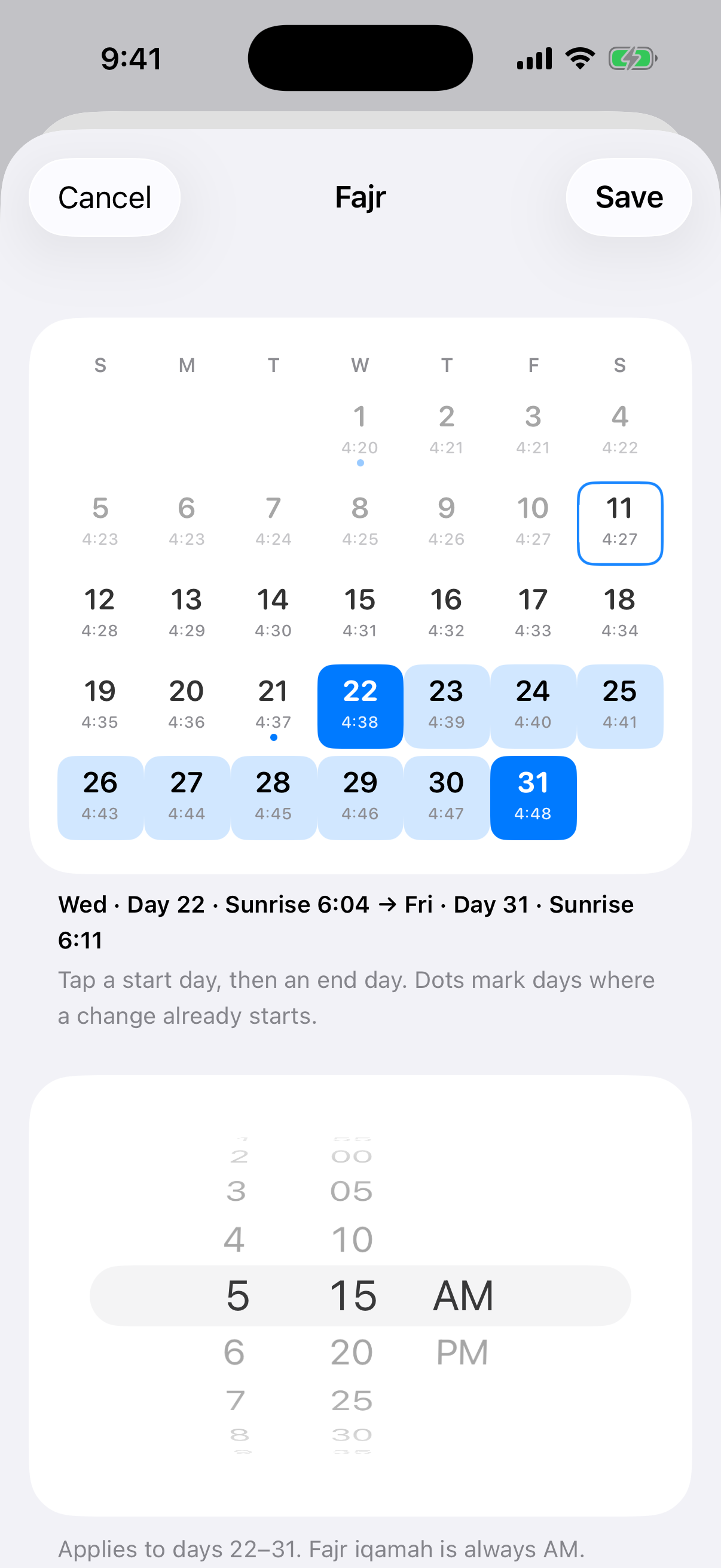
Set times manually
Each prayer shows its time as day ranges ("5:10 for days 1 to 20, then 5:15"). Tap a range, or Add a change, to open the day picker: tap a start day and an end day on the calendar, spin the time wheel, and save. The small numbers under each day are that day's adhan, so you always set the iqamah with the adhan in view.
Import a schedule from a photo
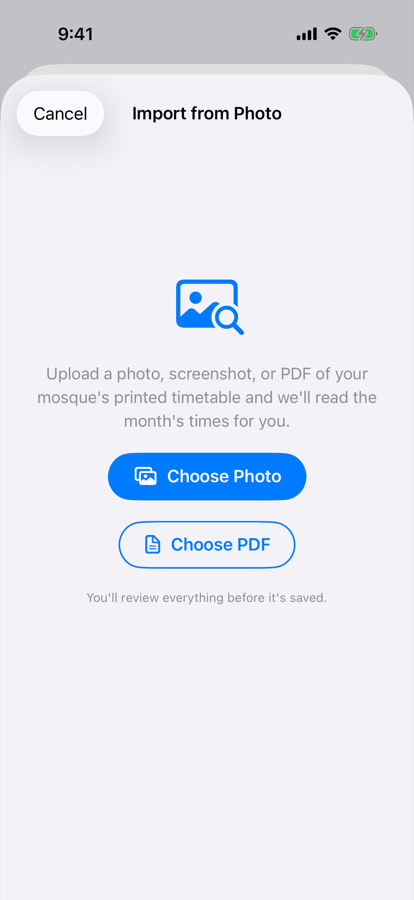
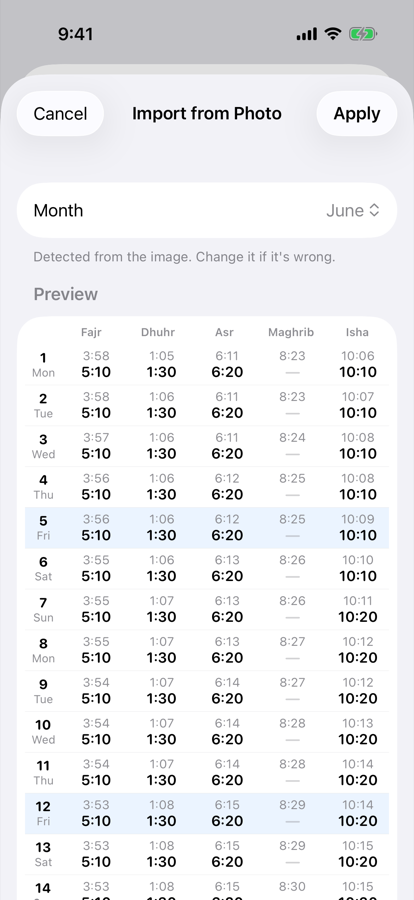
Instead of typing a month of times, upload a photo, screenshot, or PDF of your printed timetable. The app reads the month, the adhan times, and the iqamah times for you, then shows a full preview so you can check every value before anything is applied.
- In the editor, tap Import from Photo.
- Choose a photo or PDF of the printed schedule.
- Check the detected month and the preview, then tap Apply.
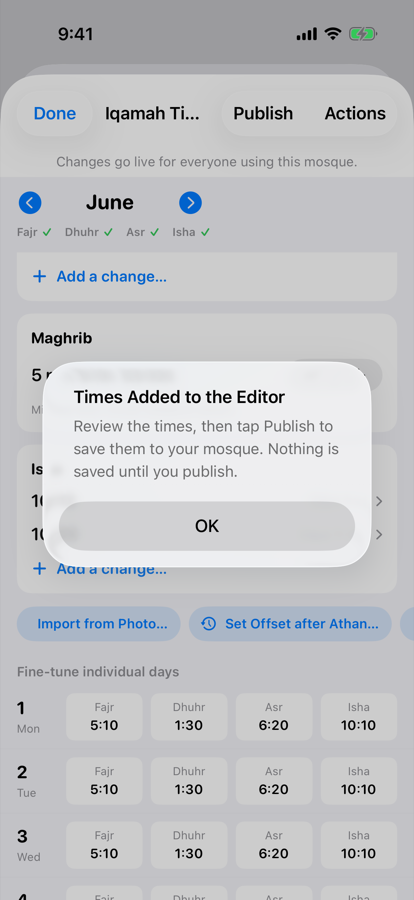
- Review the times in the editor and tap Publish. Nothing is saved to your mosque until you publish.
You can also manage your mosque from any browser at getathan.com/portal, including the same photo and PDF import.
6. Settings and notifications
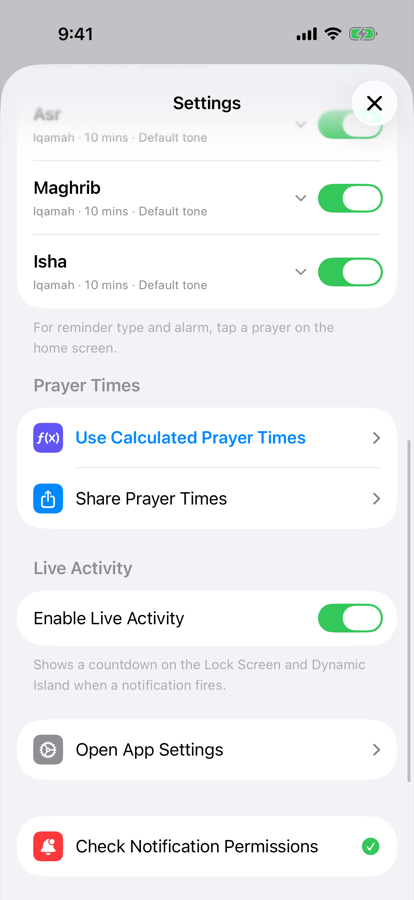
Settings covers per-prayer notifications with optional reminder offsets, appearance themes, the app language, and widgets for your home and lock screens.
7. For mosque admins: your mosque website
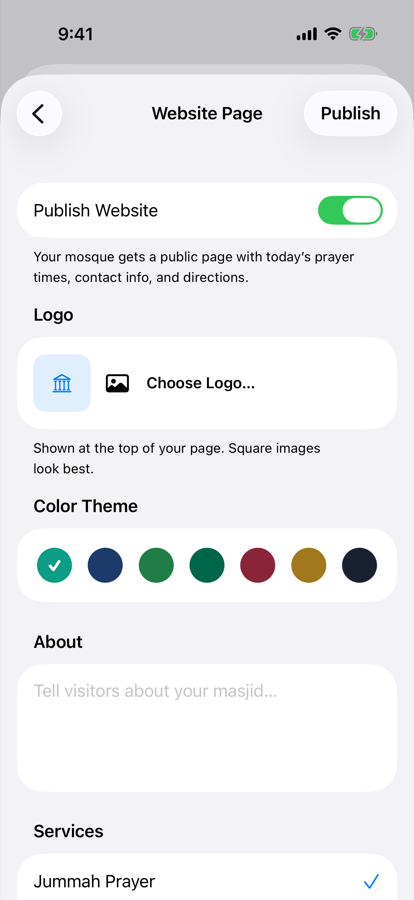
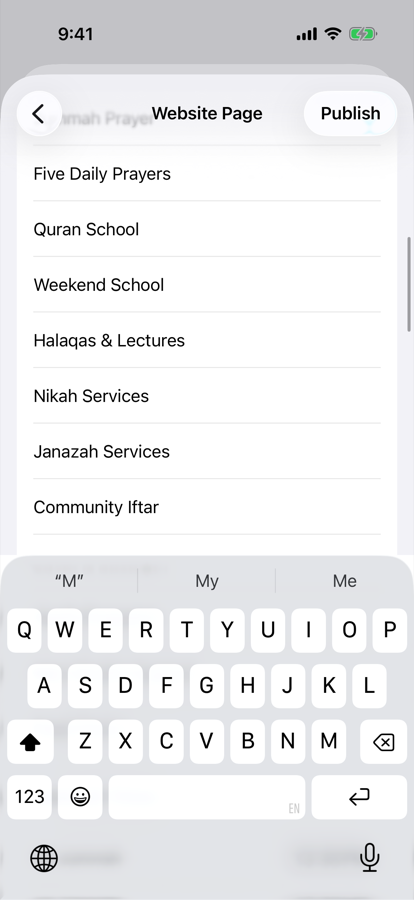
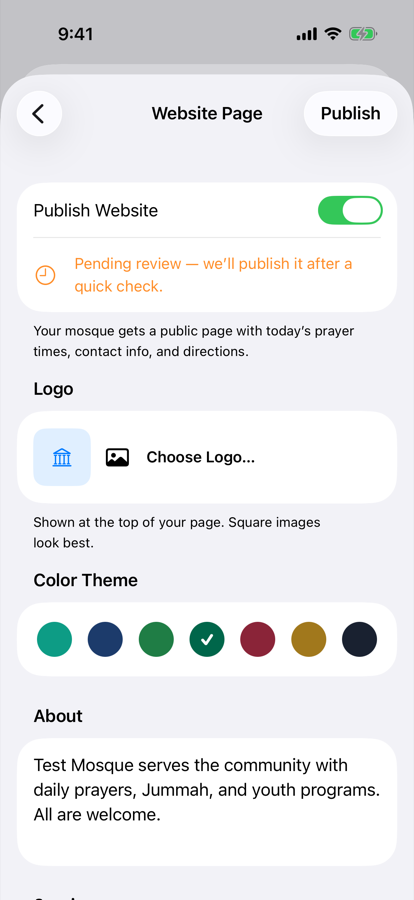
Every mosque can have its own public web page with live prayer times, Jummah sessions, events, donation links, and contact info. It lives at getathan.com/m/page/your-mosque and updates automatically when you change your times.
- Under your mosque, open Website Page and turn on Publish Website.
- Pick a color theme and write a short About text.
- Add your Jummah sessions with time, location, and khutbah speaker.
- Add events, donation methods, and your social links.
- Tap Save & Publish. New pages go through a quick review, then your site is live with a shareable link.
The finished page
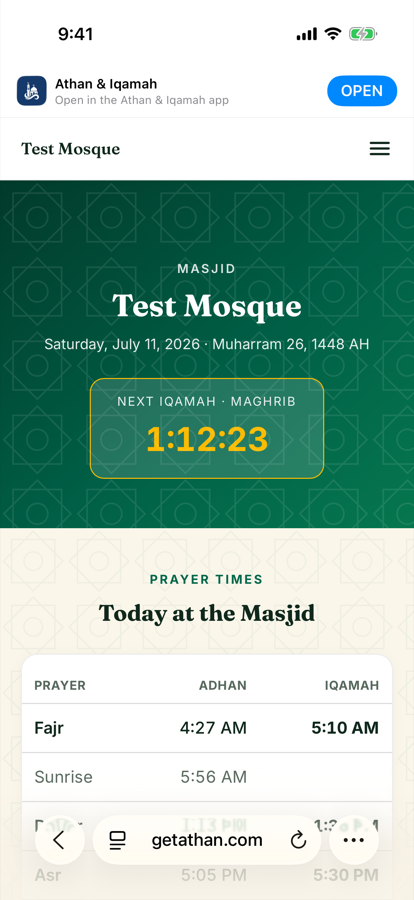
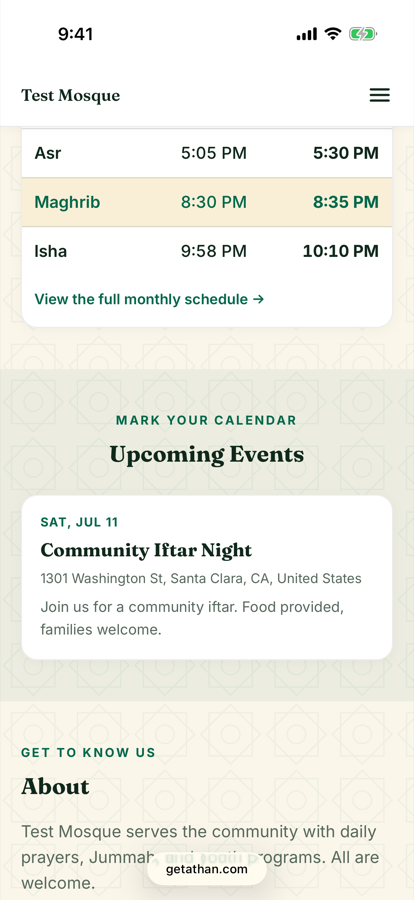
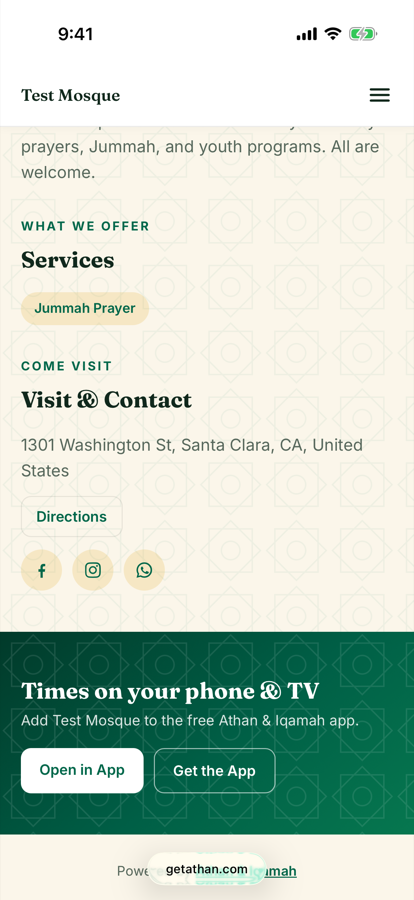
See a real example at getathan.com/m/page/test-mosque. The same editor is available in the web portal at getathan.com/portal.