How to Use the Mosque Portal
1. Signing in
Open getathan.com/portal and sign in with Google, or with your email and a password. The same account works in the iPhone and Android apps, so your mosques follow you everywhere.
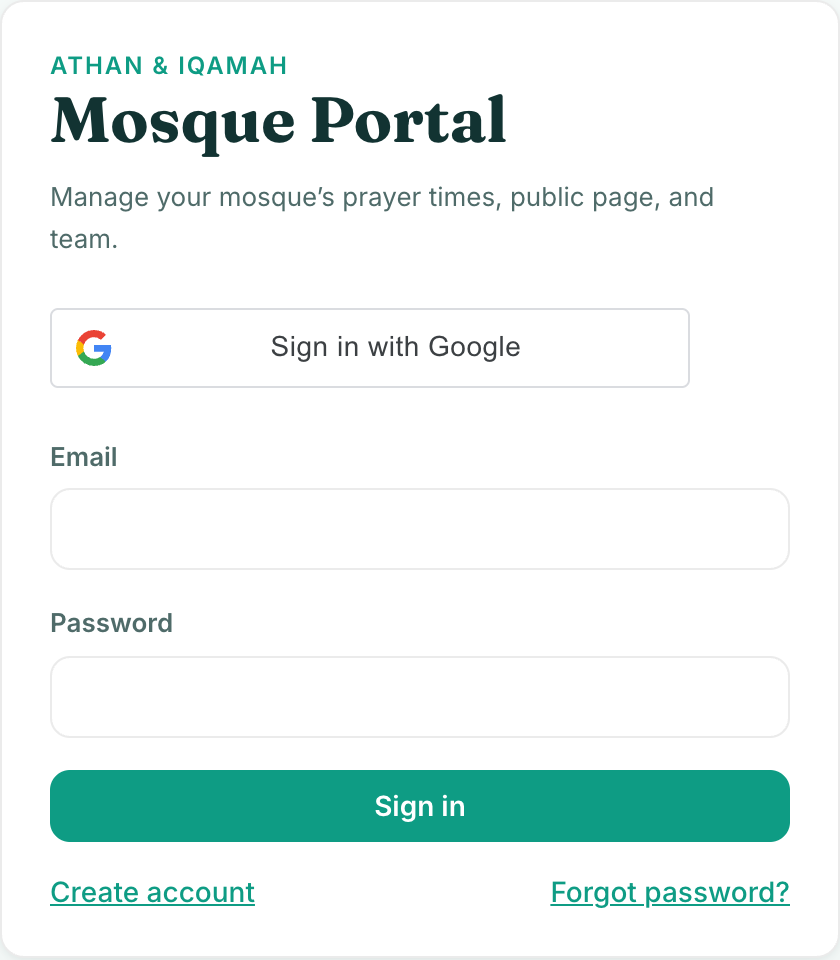
New here? Use Create account on the sign-in card. A verification code is sent to your email.
Received a private invite link from us by email? Just open it: you are signed in automatically and your mosque is already set up, so you can skip straight to editing.
2. Your mosques
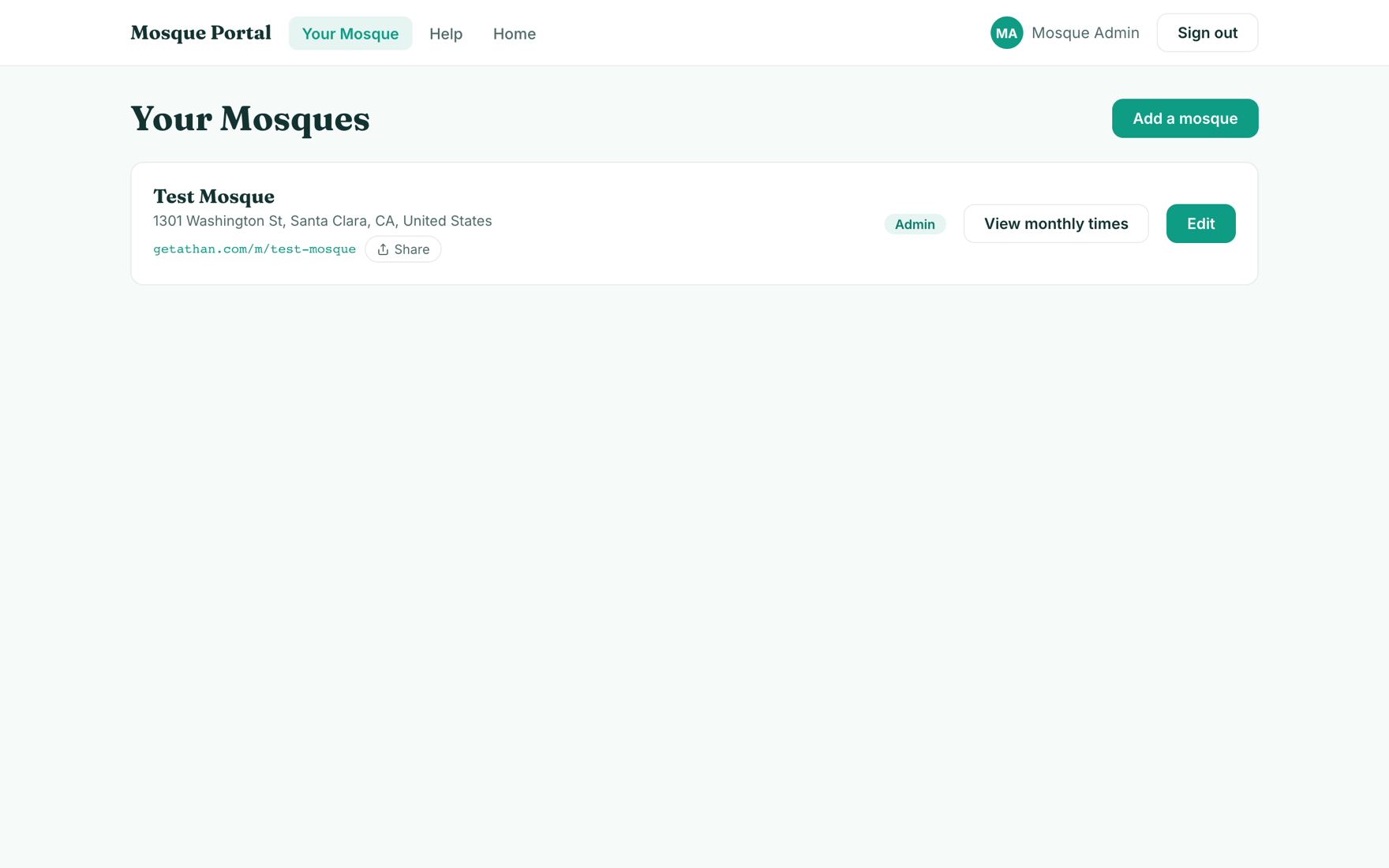
After signing in you land on Your Mosques: every mosque you own or help manage, with your role next to it. From here you can open the public schedule page, share the link, or press Edit to manage times and settings.
3. Adding your mosque
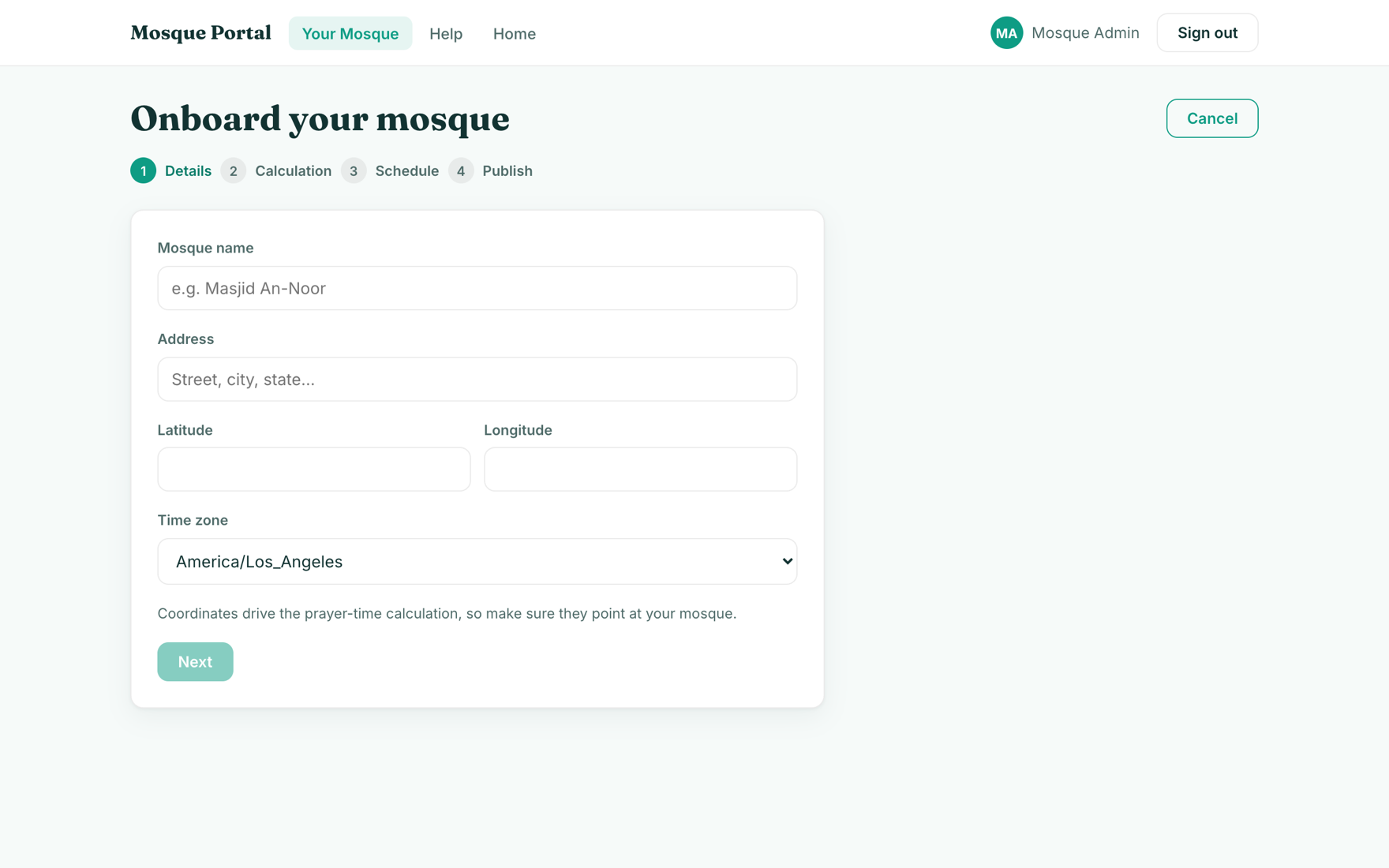
Add a mosque walks you through four short steps: the mosque's name and address, the adhan calculation method, an initial iqamah schedule, and publish. Coordinates drive the prayer-time calculation, so make sure they point at your building.
If your mosque is already listed in the app's directory, ask us to link it to your account instead of creating a duplicate: open your mosque's page and use the claim link, or contact us.
4. Editing the schedule
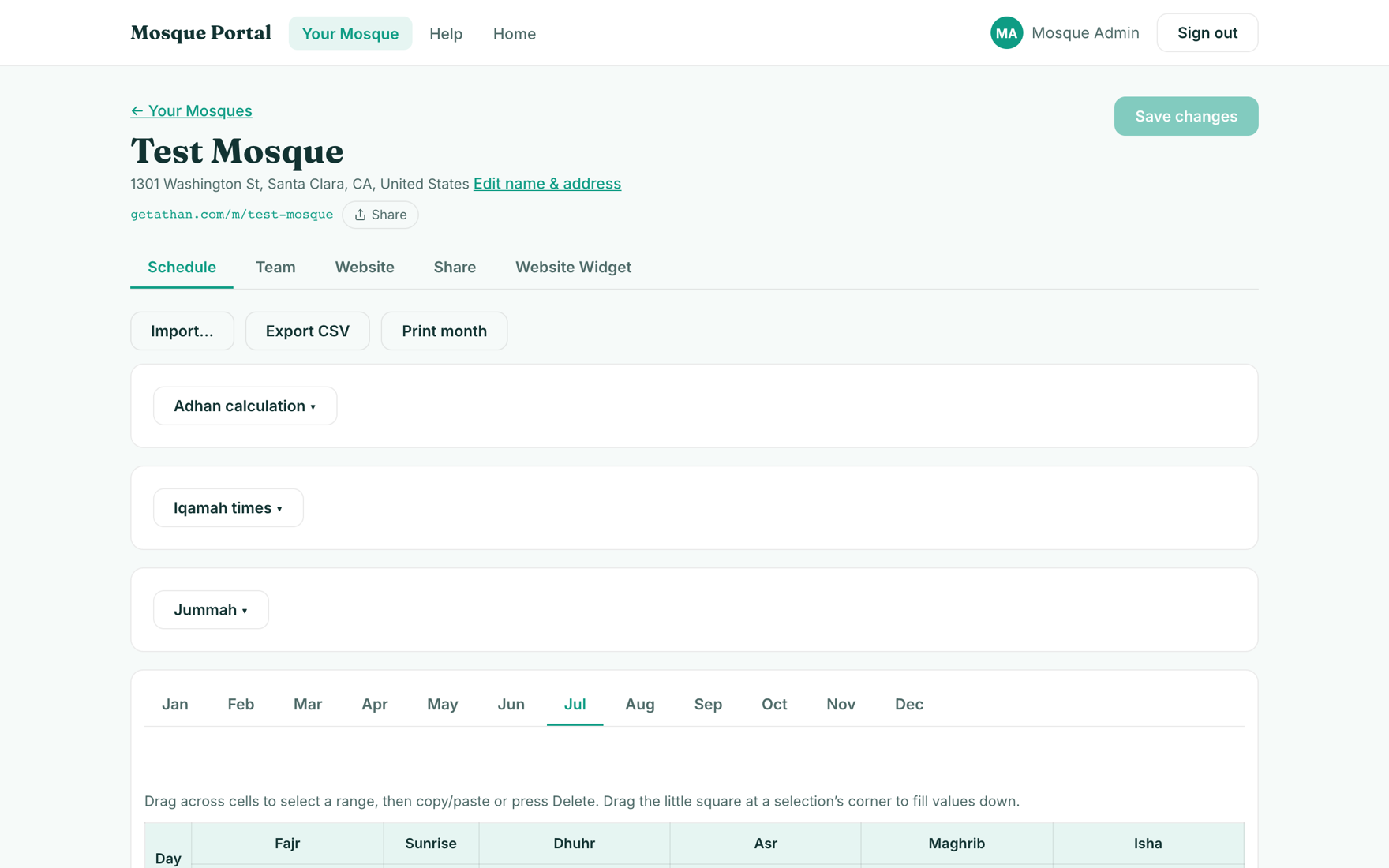
The Schedule tab is the heart of the portal. Adhan times come from the calculation method; iqamah times are yours to set. Edit any cell directly in the year grid: drag across cells to select a range, copy and paste, or drag the little square at a selection's corner to fill values down. Nothing reaches your community until you press Save changes.
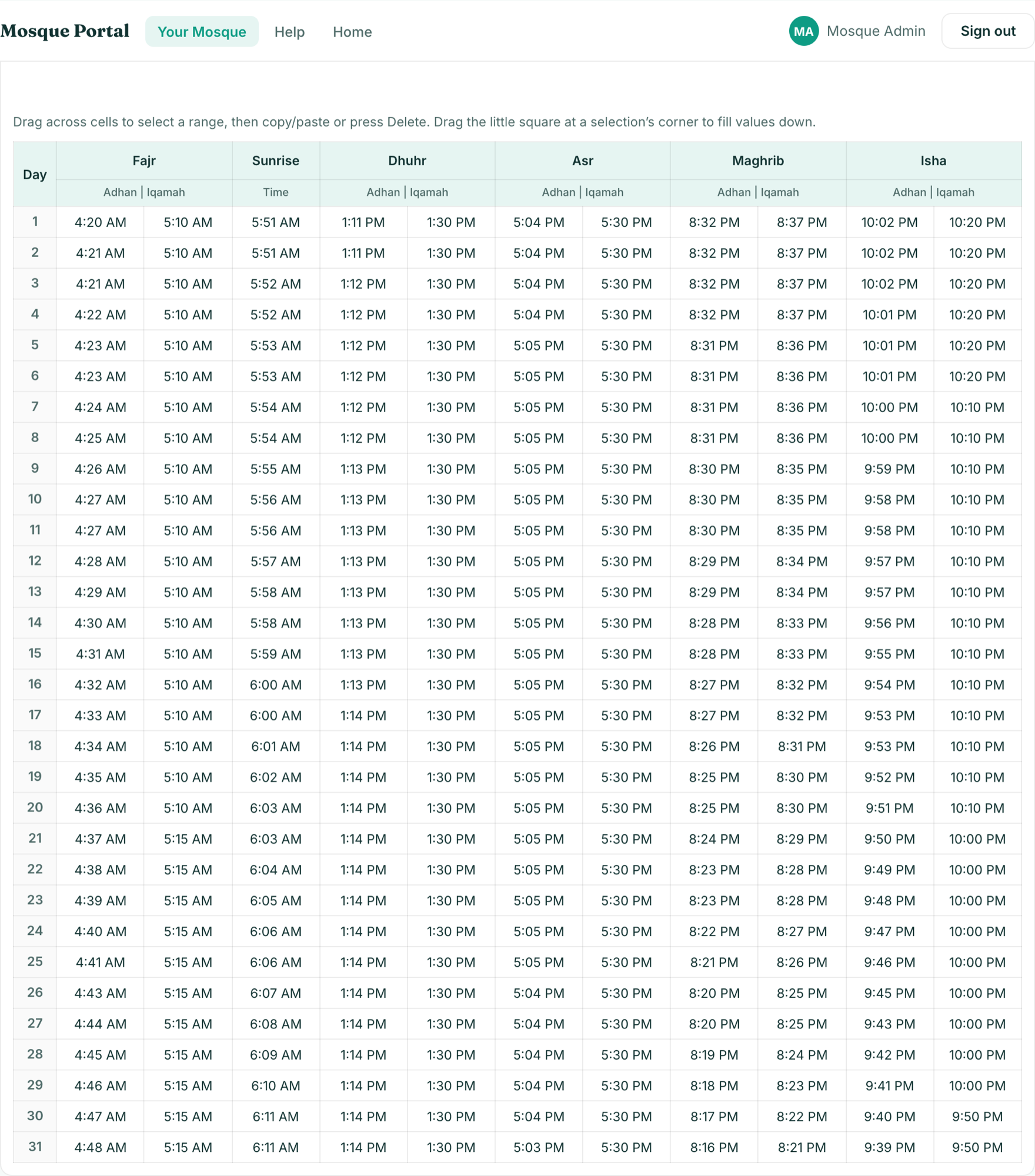
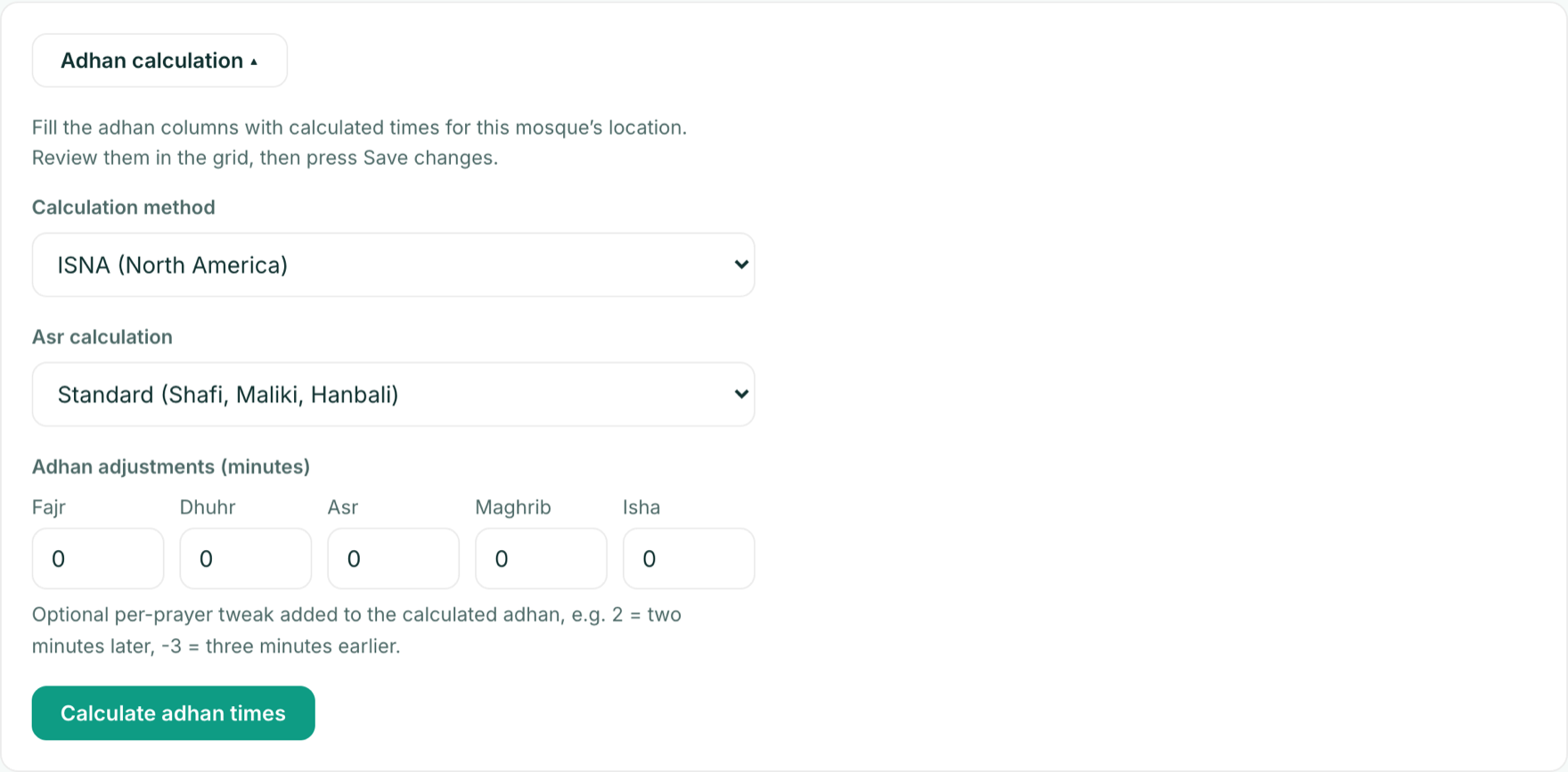
Adhan calculation
Pick the calculation method and madhab your mosque follows, then press Calculate to fill the adhan columns for the whole year.
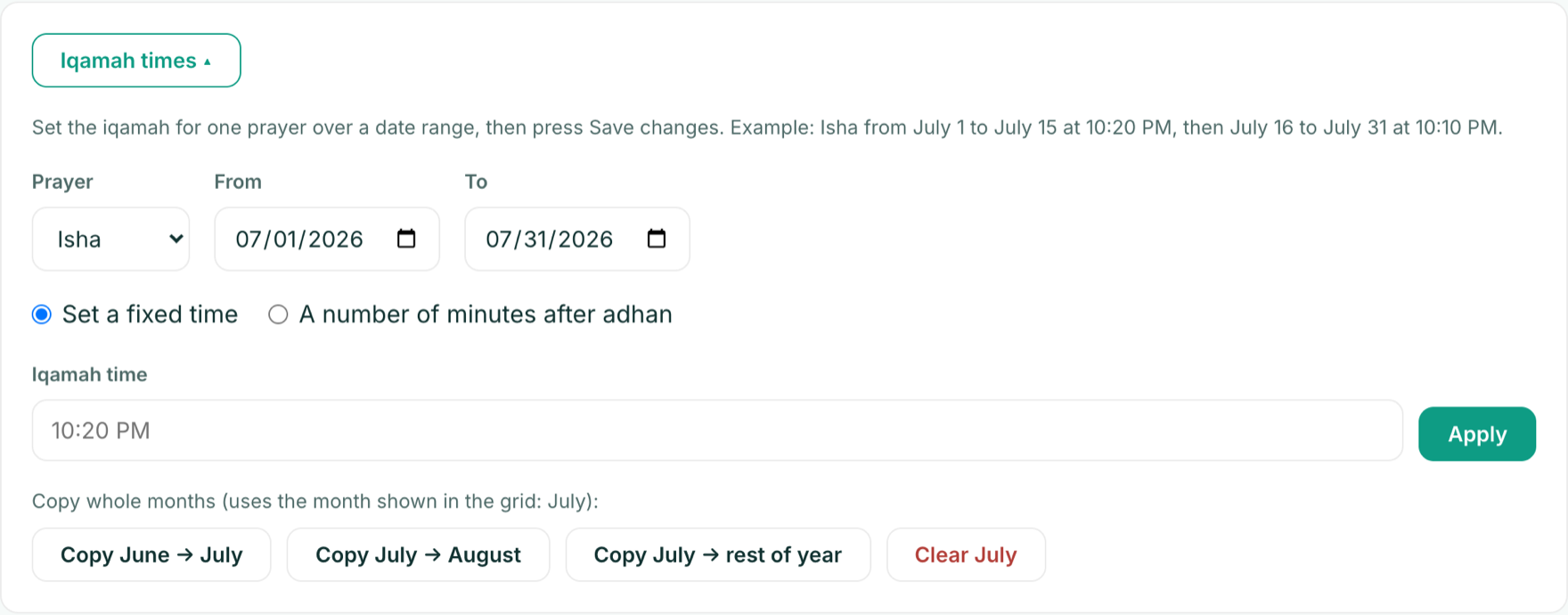
Iqamah times in bulk
Set one prayer over a date range instead of typing day by day: pick the prayer, the dates, and either a fixed time or a number of minutes after adhan, then press Apply. The copy buttons duplicate whole months.
Jummah
Jummah sessions live separately from the daily schedule. Add each session with its time and, optionally, the khutbah speaker.

5. Importing a printed timetable
Instead of typing a month of times, press Import… in the Schedule tab. Upload a photo, screenshot, or PDF of your printed timetable and the portal reads the month, adhan, and iqamah times for you, then shows a preview so you can check every value before anything is applied. Spreadsheet exports (CSV or JSON) work too.
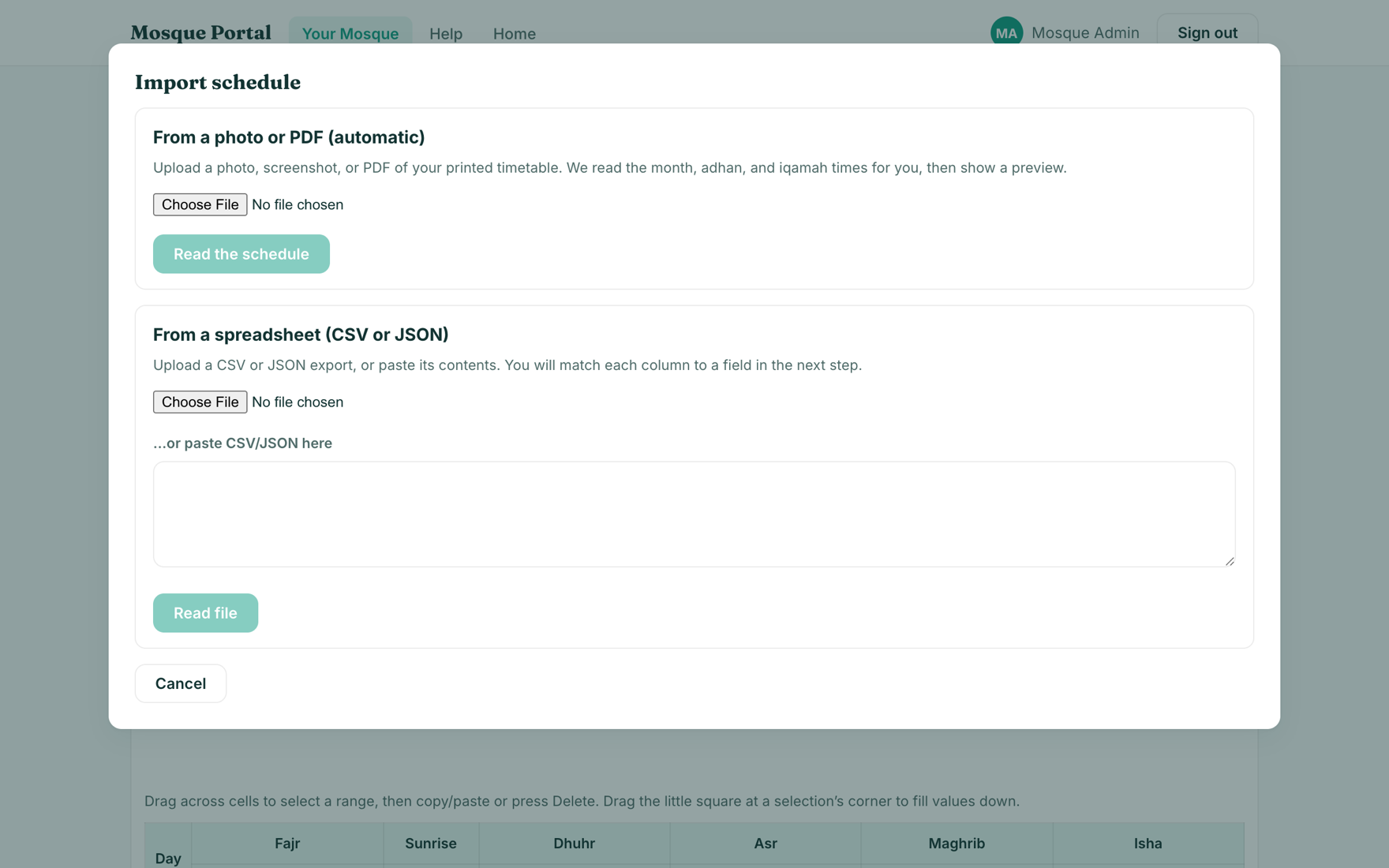
Imported values land in the grid as a draft. Review them, then press Save changes to publish.
CSV format
The easiest template is the one the portal itself produces: Export CSV in the Schedule tab downloads the full year in exactly this shape, so it round-trips cleanly. One row per day; leave a cell blank if you don't have that time.
Date,Fajr Azaan,Fajr Iqamah,Sunrise,Dhuhr Azaan,Dhuhr Iqamah,Asr Azaan,Asr Iqamah,Maghrib Azaan,Maghrib Iqamah,Isha Azaan,Isha Iqamah
2026-07-01,4:32 AM,5:00 AM,5:51 AM,1:14 PM,1:30 PM,5:05 PM,5:30 PM,8:32 PM,8:37 PM,9:55 PM,10:15 PM
2026-07-02,4:33 AM,5:00 AM,5:52 AM,1:14 PM,1:30 PM,5:05 PM,5:30 PM,8:31 PM,8:36 PM,9:55 PM,10:15 PM
The importer is forgiving, so spreadsheets from other systems usually work as they are:
- Headers are matched by keyword, so spelling variants like Zuhr or Dhuhr, Magrib or Maghrib, Iqama, Iqamah or Jamaat, Shurooq for Sunrise, and Athan, Adhan or Azaan all work. A prayer column without an iqamah word is treated as the adhan time, and you can fix any column by hand in the mapping step.
- Dates can be written as
2026-03-01,3/1/2026,3/1,1-Mar, orMar 1. You can also use two separateMonthandDaycolumns instead of one Date column. - Times like
5:45,5:45 PM,545, and17:45all parse. When AM/PM is missing it is inferred from the prayer: Fajr and Sunrise are AM, everything from Asr onward is PM.
JSON format
JSON files use full English month names as keys, then day numbers, then the times for that day. Include only the days and fields you have; times follow the same rules as CSV, so AM/PM is optional.
{
  "July": {
    "1": {
      "fajr_azaan": "4:32", "fajr_iqamah": "5:00",
      "sunrise": "5:51",
      "dhuhr_azaan": "1:14", "dhuhr_iqamah": "1:30",
      "asr_azaan": "5:05", "asr_iqamah": "5:30",
      "maghrib_azaan": "8:32", "maghrib_iqamah": "8:37",
      "isha_azaan": "9:55", "isha_iqamah": "10:15"
    },
    "2": { "fajr_iqamah": "5:00", "isha_iqamah": "10:15" }
  }
}
The accepted field names are fajr_azaan, fajr_iqamah, sunrise, dhuhr_azaan, dhuhr_iqamah, asr_azaan, asr_iqamah, maghrib_azaan, maghrib_iqamah, isha_azaan, and isha_iqamah.
6. Printing and exporting
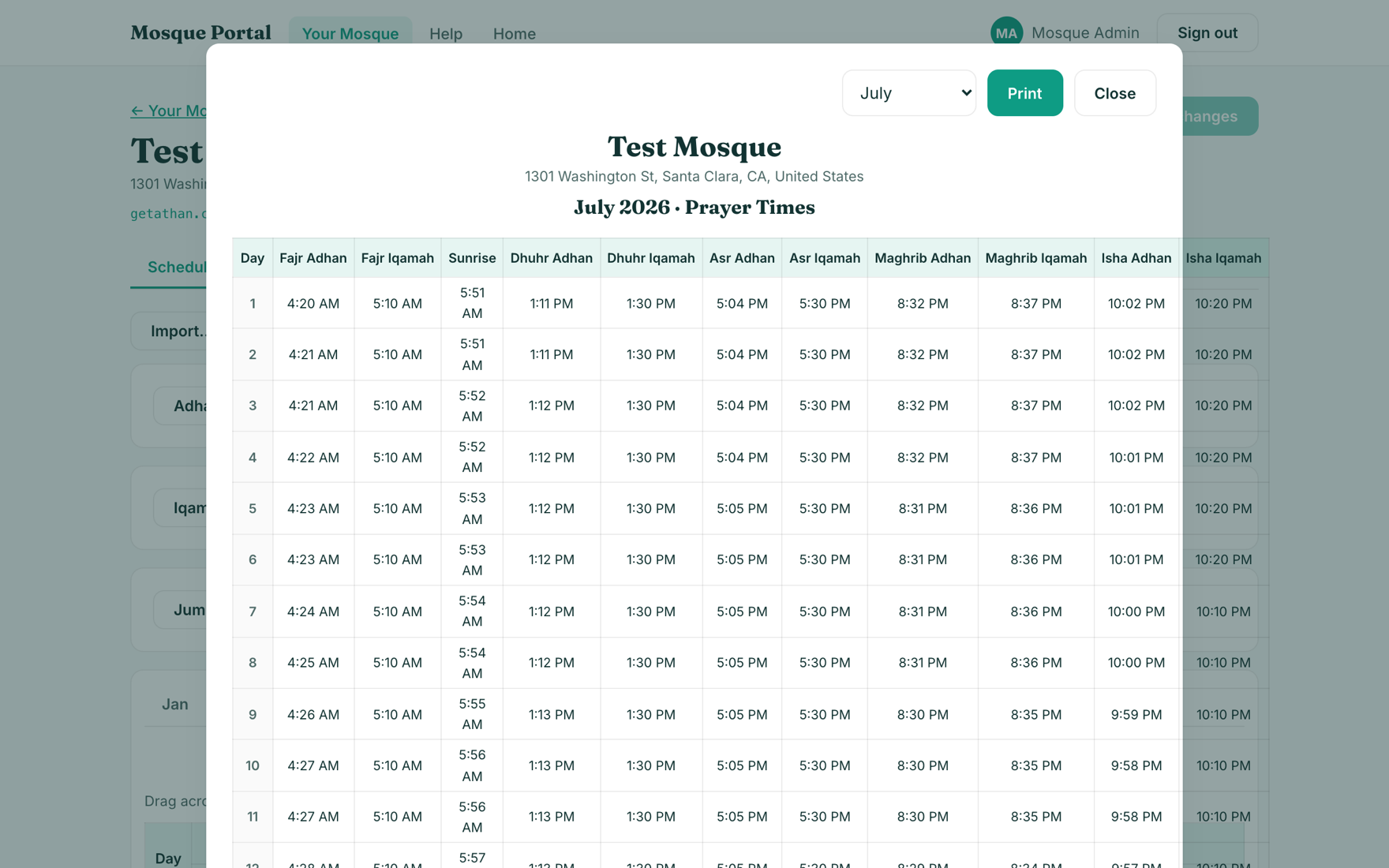
Print month makes a clean one-page timetable for the notice board, and Export CSV downloads the year for your records or another system.
7. Your team
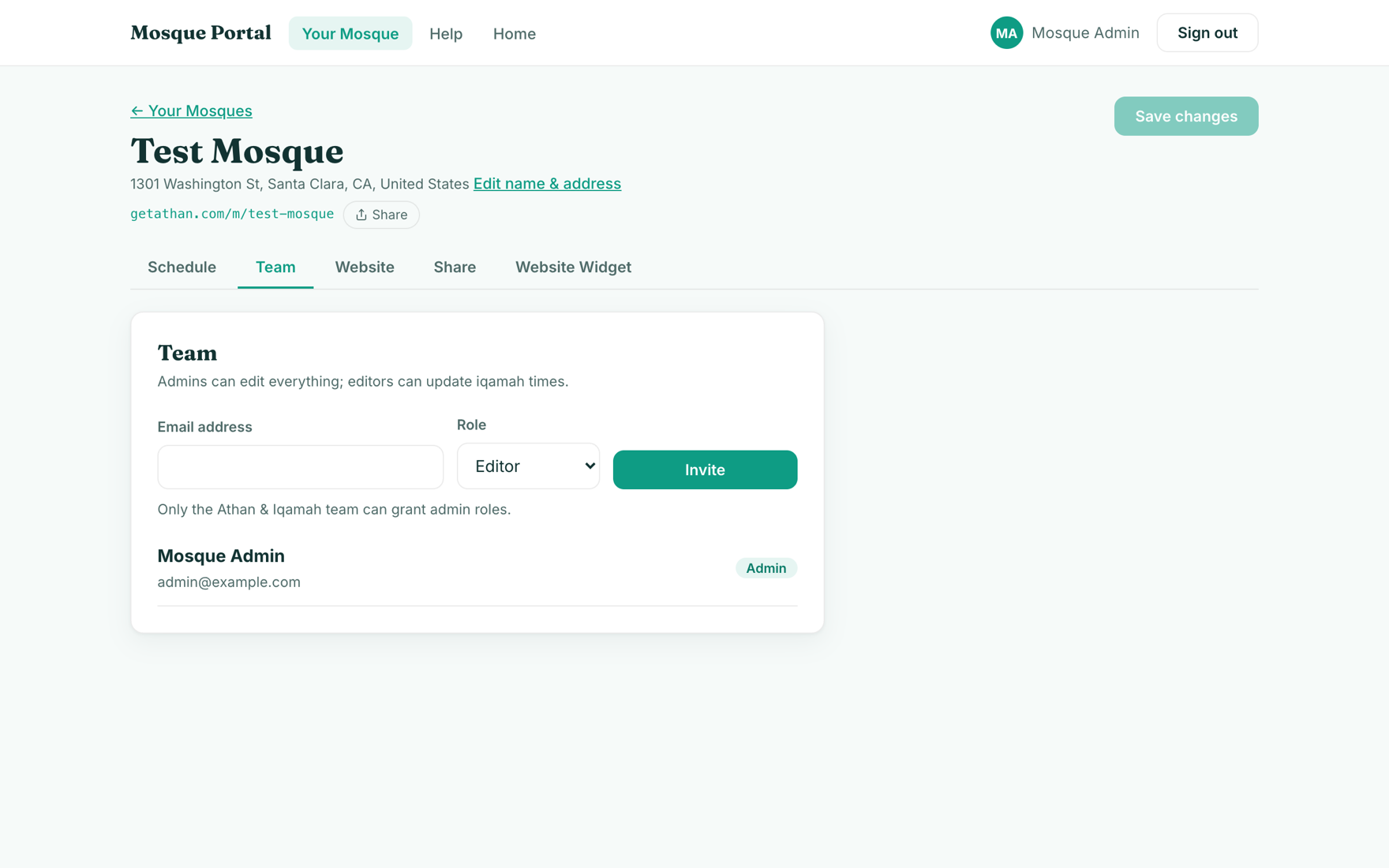
You don't have to manage the schedule alone. In the Team tab, invite others by email as admins (full control, including the team and the website) or editors (iqamah times only).
8. Your mosque website
The Website tab publishes a free public page for your mosque at getathan.com/m/page/your-mosque, with live prayer times, Jummah sessions, events, donation links, services, and contact info. Pick a theme, fill in what applies, and press Save. New pages go through a quick review, then your site is live.
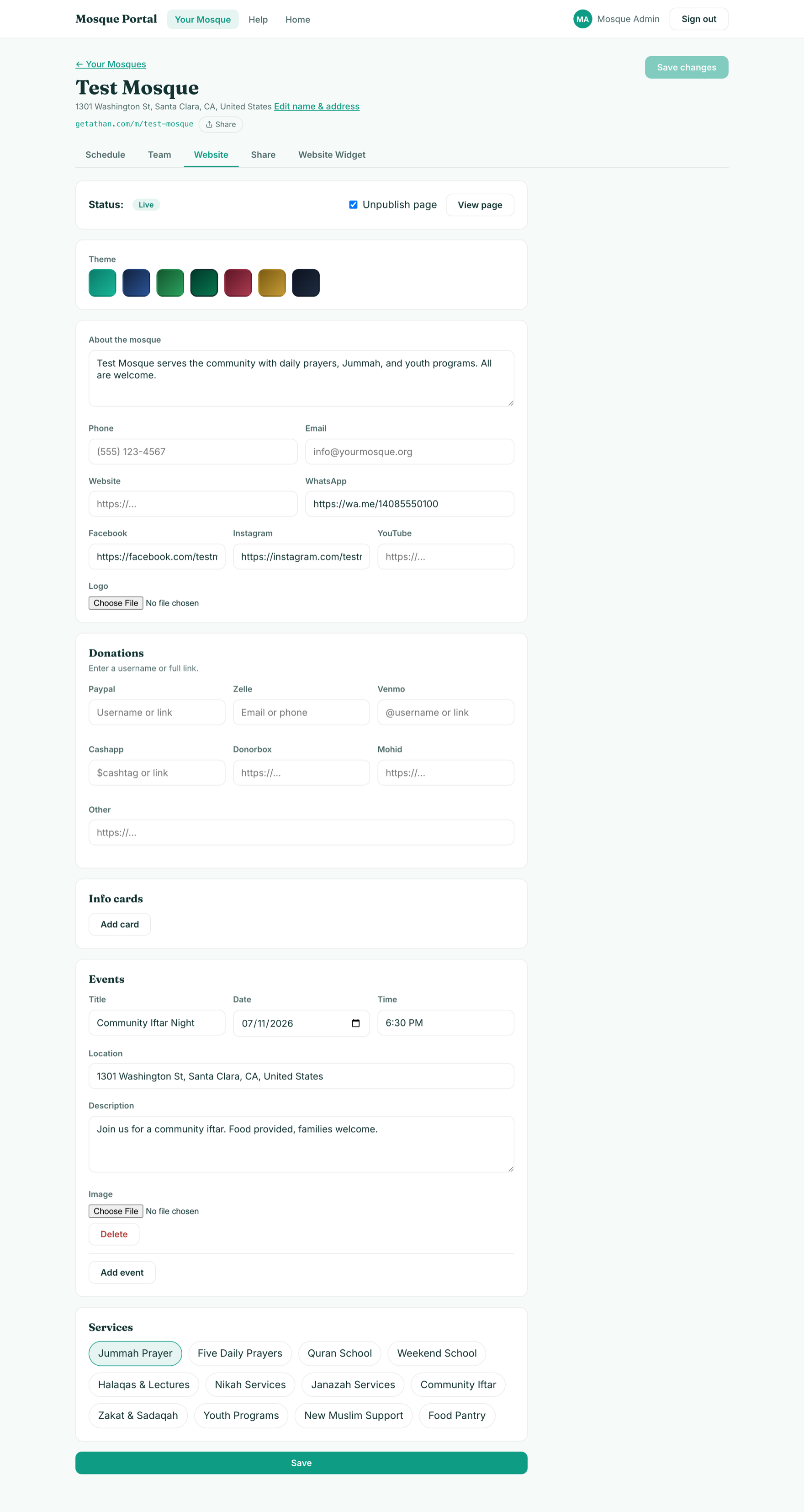
See a real example at getathan.com/m/page/test-mosque.
9. Sharing your schedule
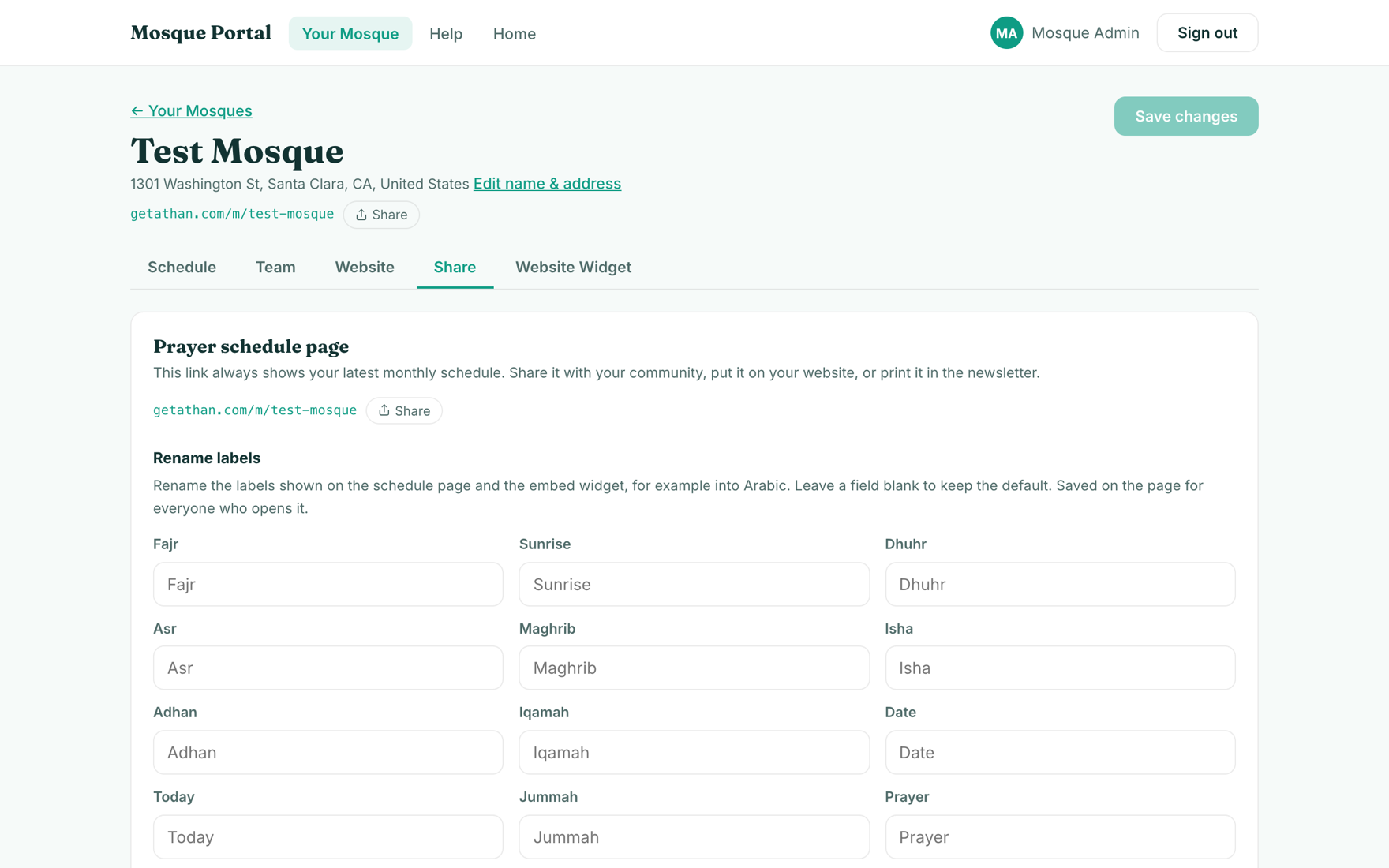
The Share tab holds your mosque's permanent schedule link, always showing the latest monthly times. Put it on your website, in the newsletter, or in the WhatsApp group. You can also rename the labels shown on the schedule page, for example into Arabic.
10. The embed widget
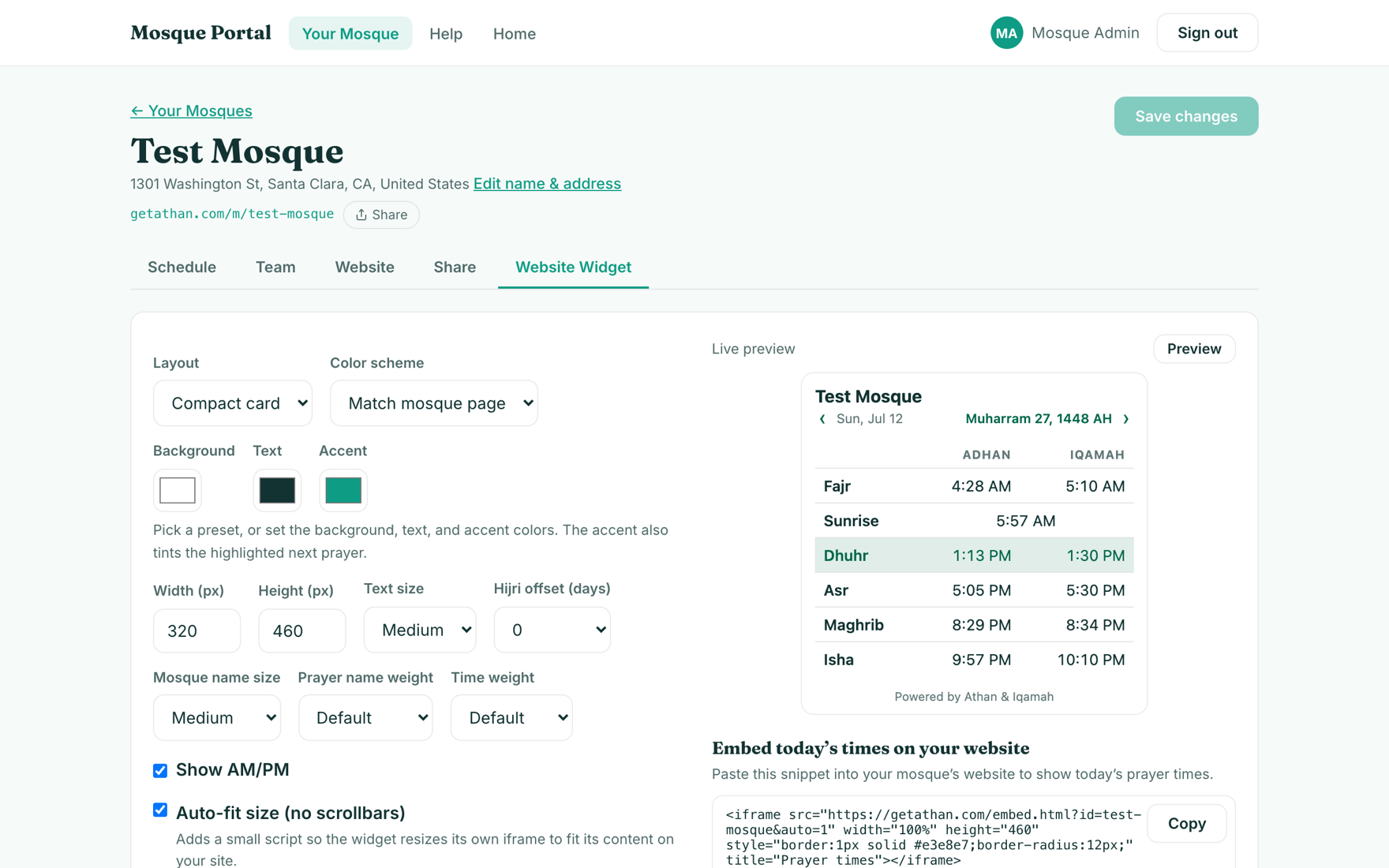
Already have a mosque website? The Website Widget tab builds a small embed that shows today's times on your own site. Choose the layout, colors, and size, watch the live preview, then copy the snippet into your site.